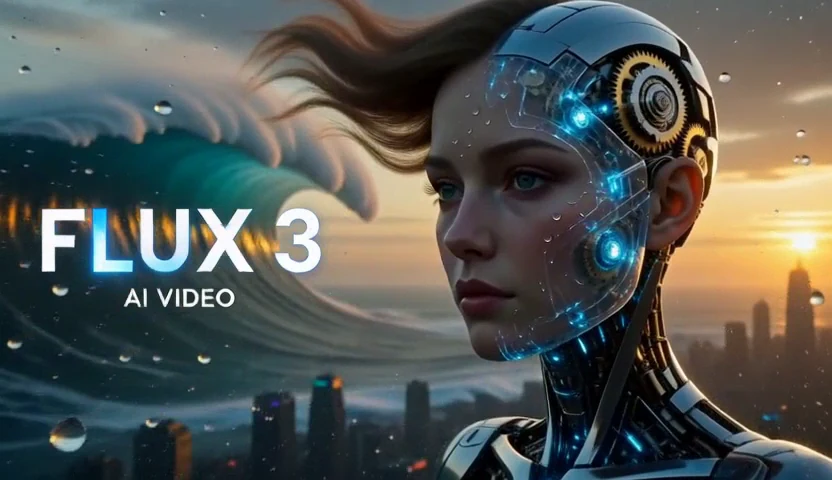
About Flux Video
Flux Video is Black Forest Labs' line of video models. Its first release, FLUX 3 Video, comes from the multimodal FLUX 3 family. It creates clips from a text prompt, image keyframes or an existing clip to continue, and can generate synchronized audio in the same generation.
Use text-to-video to start a scene from a prompt, image-to-video to animate a still or guide a shot through keyframes, and video continuation to carry a source clip forward. A single generation can include multiple scenes and camera angles. See the version details for limits, resolutions and release history.
For still images from the same family, see FLUX 3 Image. Changes to an existing clip go through BFL's separate FLUX Video Edit tool.
How to prompt Flux Video
- 01
Direct an action
Name the subject, the action and its progression. A visible sequence such as
the fox crouches, then leapsgives the clip a clear arc. - 02
Describe the camera
Add a specific camera behavior, such as a locked wide shot, slow push-in or handheld follow, when framing and movement matter.
- 03
Plan timed beats
Use short time ranges for actions that must land at particular moments. Keep each beat achievable within the clip duration.
- 04
Prompt the sound with the scene
Describe audible sources such as footsteps, rain or engine noise alongside their visible causes. Put spoken dialogue in quotes and name the speaker.
- 05
Pin important frames
Use image-to-video keyframes to anchor the opening, ending or moments between them. One image sets the opening frame; timestamped images can map a storyboard.
Anatomy of a great prompt
Core summary: {{sequence_summary}}. Scene: {{environment}}, {{time_of_day}}, {{lighting}}. Subject: {{subject_description}}. Action: {{action}}. Camera: {{camera_direction}}.{{#if dialogue}} The {{speaker}} says, "{{dialogue}}".{{/if}}{{#if soundscape}} Audio: {{soundscape}}.{{/if}} Style and color: {{style}}, {{palette}}.