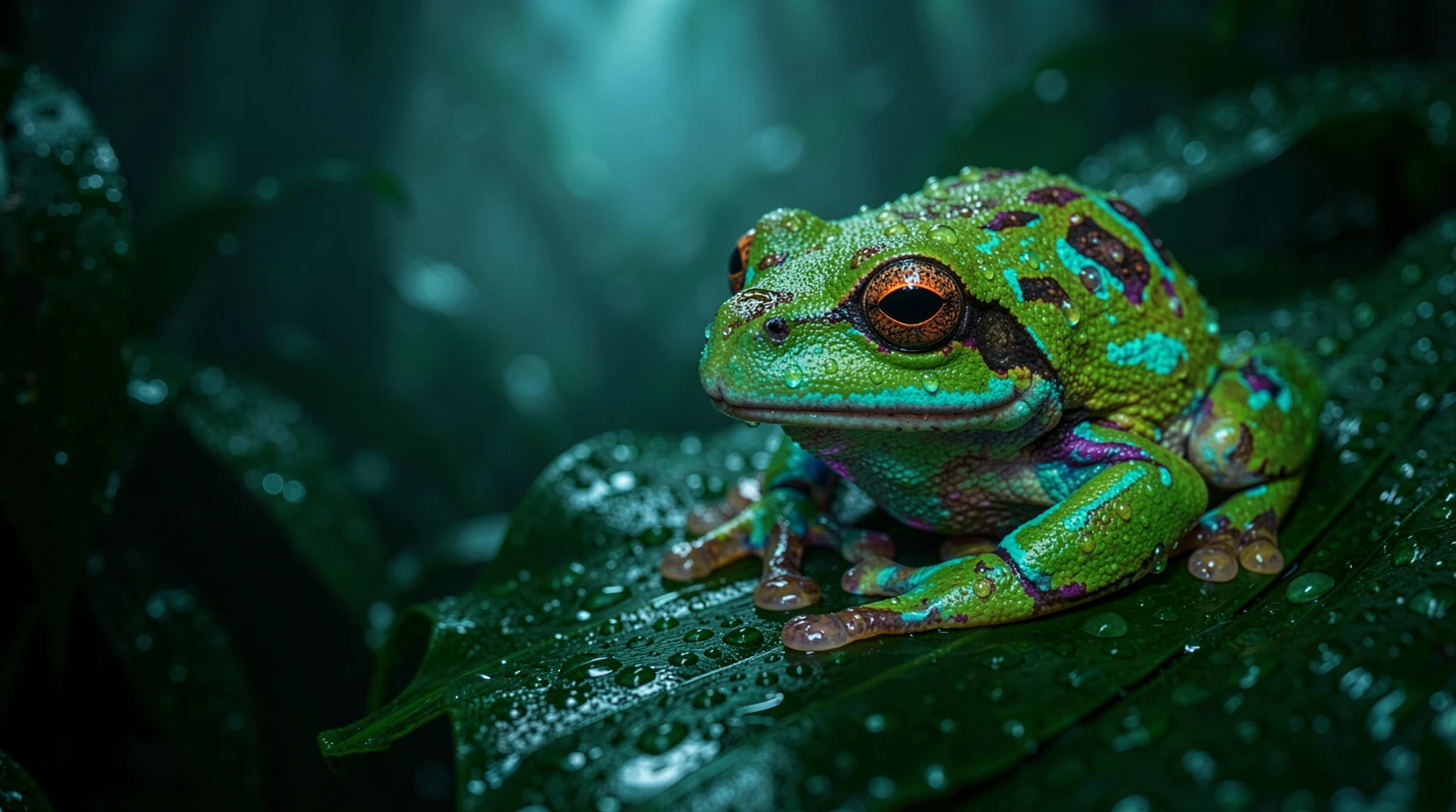
About Flux
FLUX is Black Forest Labs' family of image-generation models. Its releases range from text-to-image systems to models for reference-guided editing and layout-controlled image generation. See the FLUX.1 model announcement, FLUX.2 overview and FLUX 3 Image page for the vendor's descriptions.
The versions differ in what they accept and how they can be used. Some are hosted API models, while others have downloadable weights under different licenses. FLUX.1 Kontext added text-and-image editing, and FLUX.2 [klein] offers small, fast models for local use. Compare them on the versions page before choosing a model for a commercial or local workflow.
FLUX.2 combines image generation and editing and accepts reference images. FLUX 3 Image adds layout control with editable boxes for important elements. FLUX 3 Video is not listed as an image version here because it generates video; see Flux Video.
How to prompt Flux
- 01
Describe the scene
Write a full sentence that names the main subject, what it is doing and where. Then add composition, lighting and style. A described scene gives FLUX more to work with than a list of tags.
- 02
Specify text and placement
Give the exact words and say where they belong. FLUX 3 Image can use a separate box and description for each important element.
- 03
Assign roles to references
For FLUX.2 or Kontext editing, say what each reference contributes and what you want changed. Check the selected version's input limits before building a workflow.
- 04
Prompt FLUX.2 positively
FLUX.2 does not support negative prompts. Describe the intended result directly, such as
an empty, deserted streetinstead ofno people. - 05
Give FLUX.2 exact colors
When a precise color matters, include its hex code and identify the object or area that should use it.
Anatomy of a great prompt
A {{shot_type}} image of {{subject}} {{action}}. Setting: {{setting}}. Composition: {{composition}}. Lighting: {{lighting}}. Visual style and surface detail: {{style_details}}.{{#if text}} Include the exact text "{{text}}" at {{text_placement}}.{{/if}}{{#if hex_color}} Use color {{hex_color}} for {{color_target}}.{{/if}}